On the home page, you can click either “Login” or “Sign up” to get started.
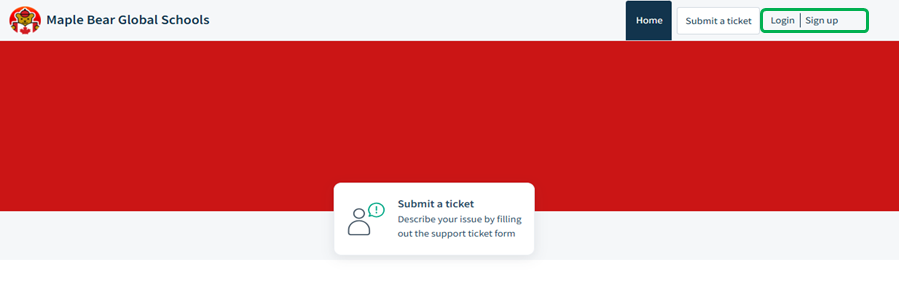
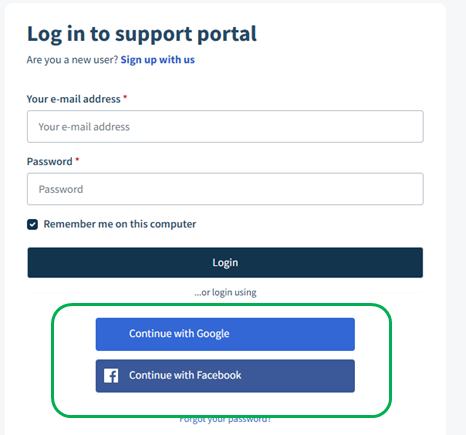
If you click “Login”, you will have the option to sign in using your existing Facebook or Google account.
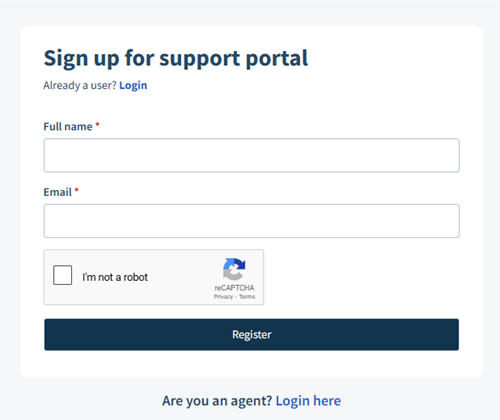
If you prefer to create a separate login credential for Freshdesk, simply click “Sign up” and enter your email address and preferred password. We recommend that all JVs create an account so you can access the feature that allows you to view and track all the tickets you have submitted.
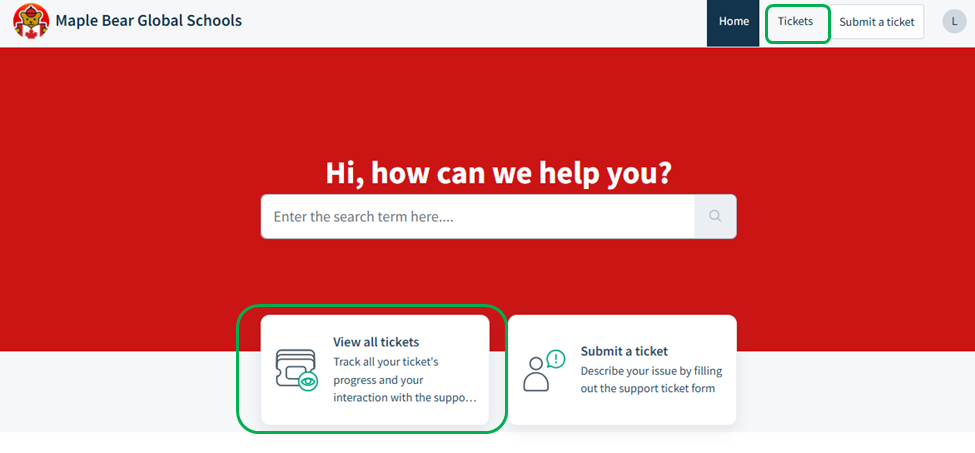
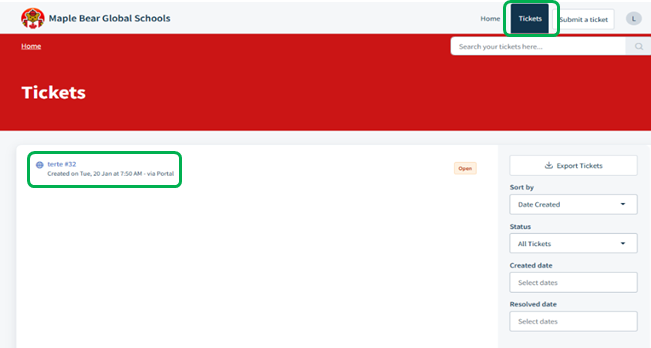
Once you log in, there are two ways you can view your submissions:
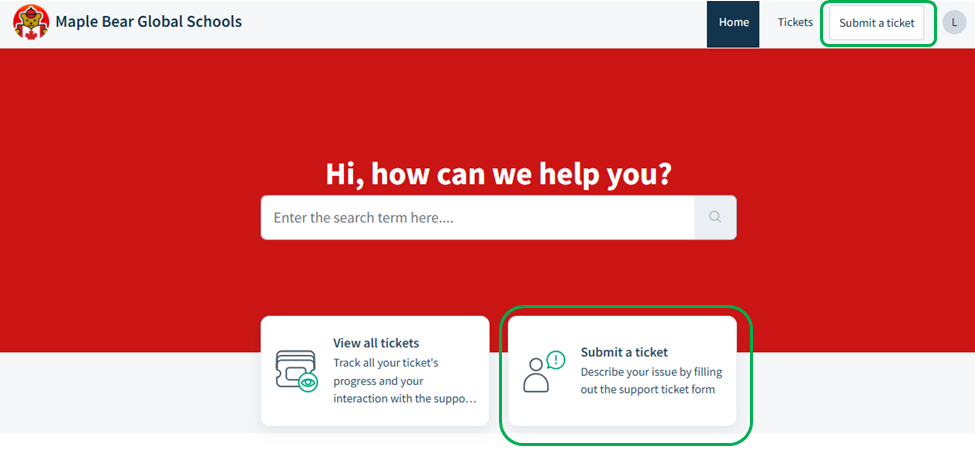
- Click the “View all tickets” button at the bottom, or
- Select “Tickets” from the top navigation bar.
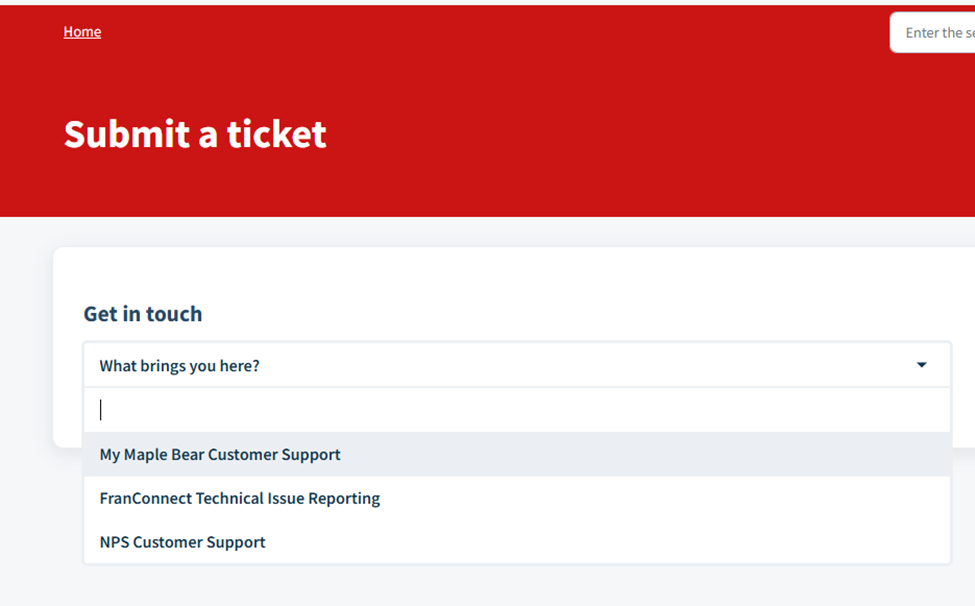
You can also submit a request by clicking the “Submit a ticket” button, either on the home page or from the top navigation bar. After selecting “Submit a ticket”, the system will take you to a new page where you can choose the appropriate ticket form.
There are three ticket forms currently available on Freshdesk:
- My Maple Bear Customer Support – Agent: Caio
- FranConnect Technical Issue Reporting – Agent: Lucy
- NPS Customer Support – Agents: Caio & Lucy
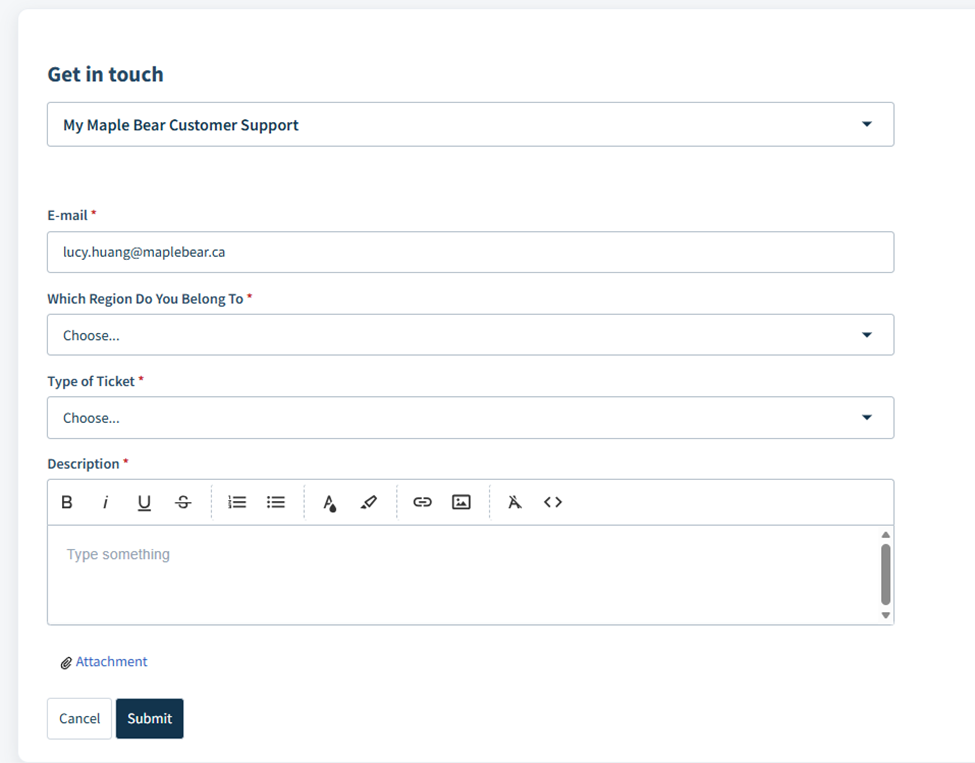
My Maple Bear Customer Support Ticket Form
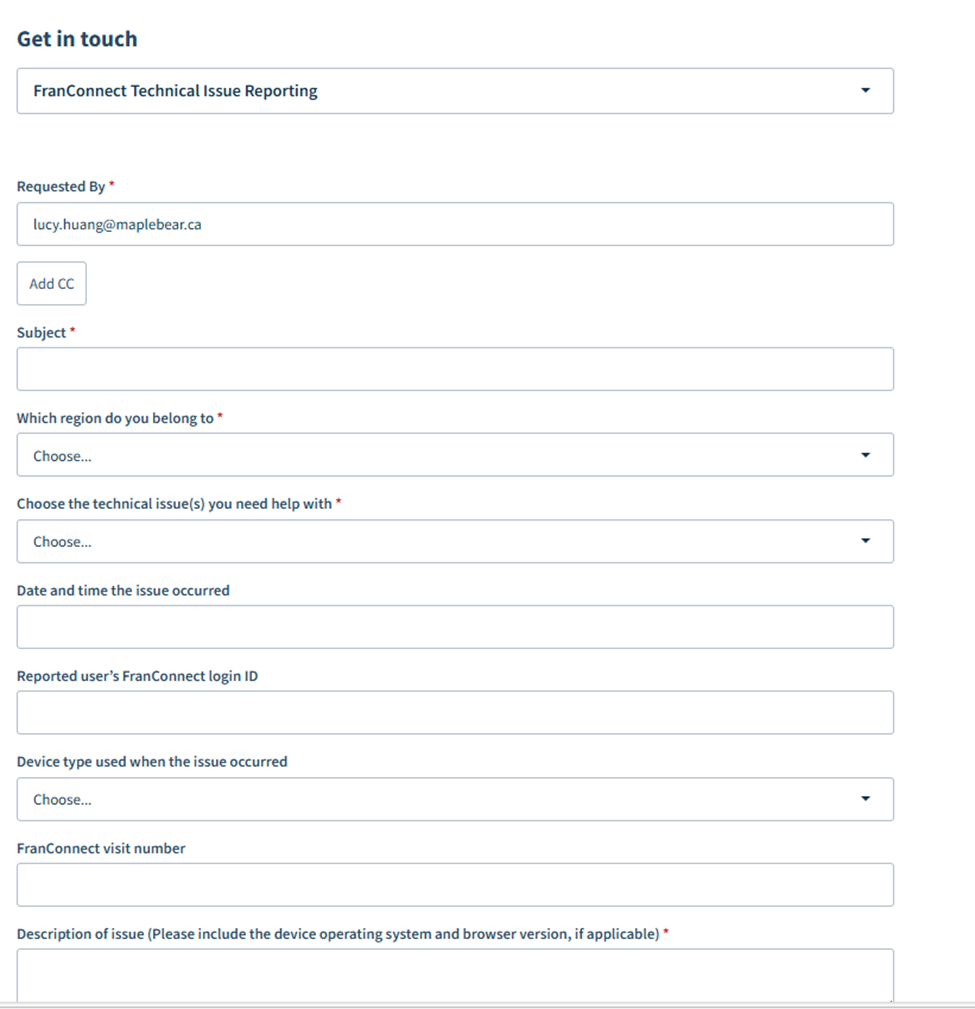
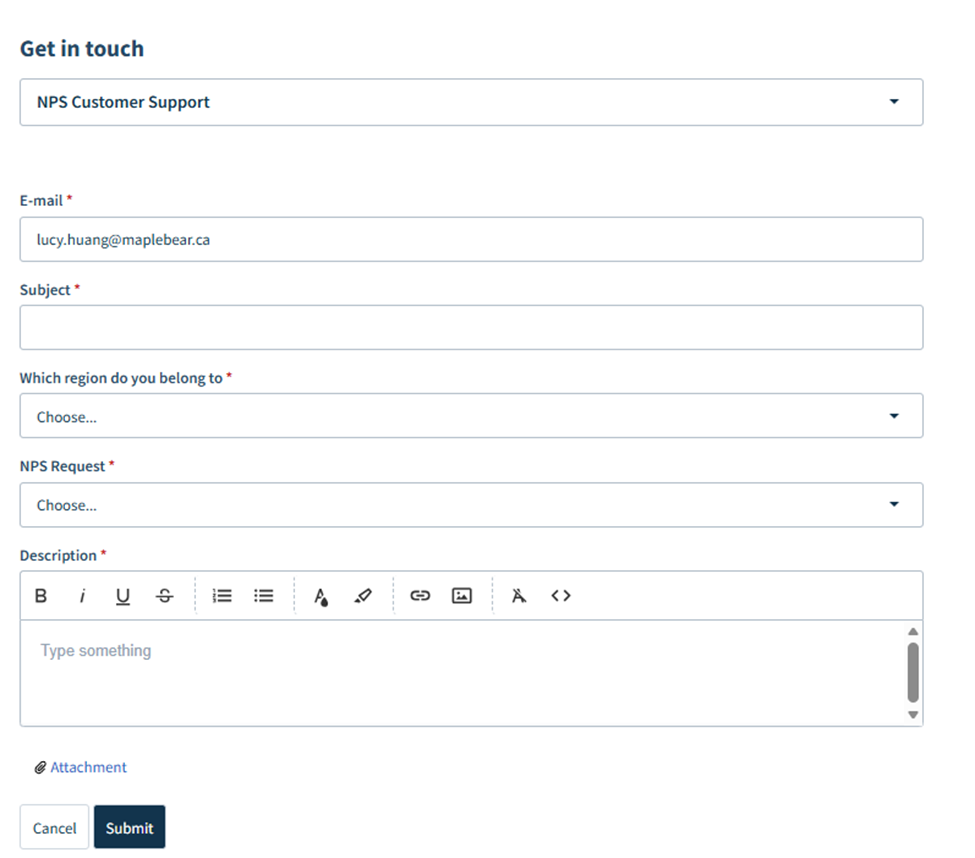
All fields marked with a red * are mandatory and must be completed before you can submit a ticket.
FranConnect Technical Issue Reporting Ticket Form
NPS Customer Support Ticket Form
You will receive an email notification once your ticket is submitted, as well as additional notifications when an agent responds. You can reply to the agent’s message directly by email, or you can respond through the portal under the “Tickets” tab. All conversation history will be recorded under the respective ticket.
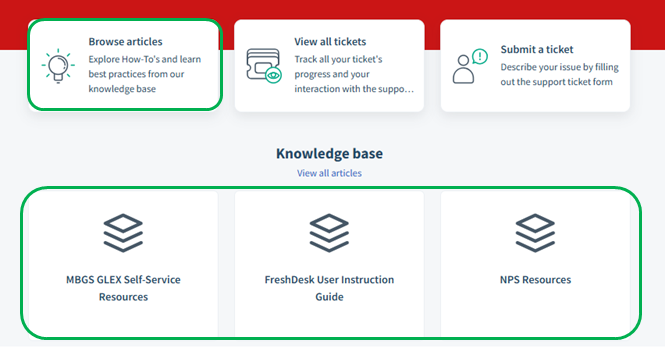
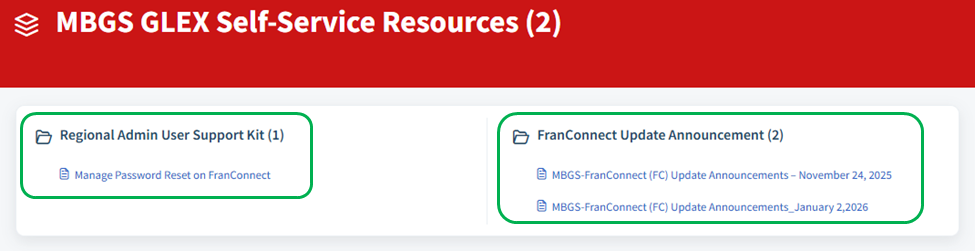
Additionally, we have several self-support resources available for all JVs. You can click either “Browser Articles” or “Knowledge Base” buttons to explore the materials we have prepared for you. Under “MBGS GLEX Self-Service Resources,” you will find two folders:
Regional Admin User Support Kit – This includes instructions to help JVs resolve level‑1 technical issues, such as resetting passwords for your school staff.
FranConnect Update Announcement – This folder contains all previously released announcements to keep you up to date with GLEX changes.
FreshDesk User Instruction Guide – This folder contains all the resources you need to learn how to use FreshDesk, as well as other features offered by the platform.
NPS Support Kit – This folder contains all the information you need from how to access the dashboard, to how to navigate it, and how to extract information from it.
Was this article helpful?
That’s Great!
Thank you for your feedback
Sorry! We couldn't be helpful
Thank you for your feedback
Feedback sent
We appreciate your effort and will try to fix the article